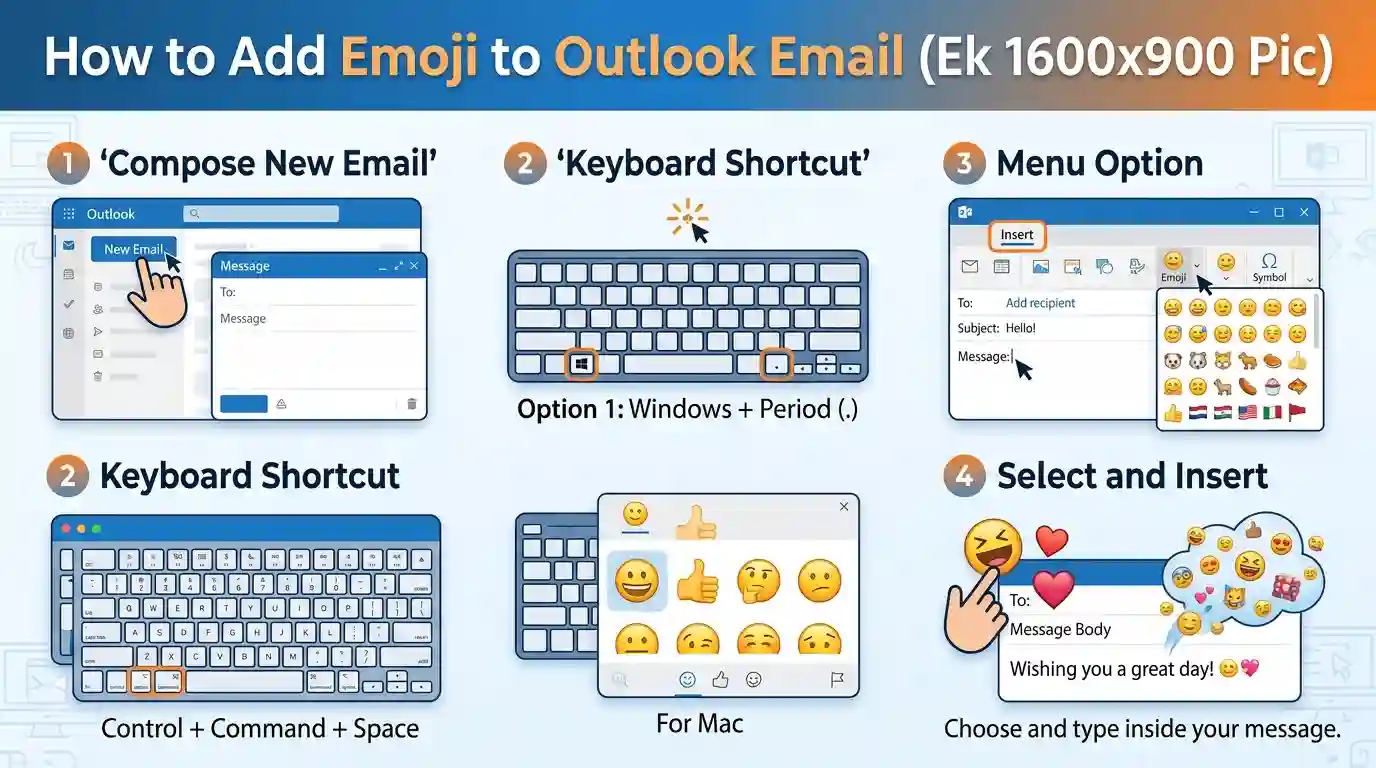
To add an emoji to an Outlook email, open a new message or reply and click inside the message body. On Windows, press Windows + . (period) to open the emoji picker, then select an emoji. On Outlook on the web, use the Insert emojis and GIFs button. Mac and mobile users can use their device’s built-in emoji keyboard.
Key Takeaways
- Windows users can insert emojis with Windows + . or Windows + ;.
- Outlook on the web has an emoji option in the message composer.
- Mac users can open the macOS emoji viewer with Control + Command + Space.
- iPhone and Android users can use the emoji keyboard on their devices.
- Some recipients may see different emoji designs depending on their email app and device.
How to Add Emoji to Outlook Email on Windows
The quickest way to add an emoji in Outlook on a Windows computer is to use the built-in Windows emoji picker. This method works with many text fields, so you do not need to find a special emoji button inside Outlook.
Use the Windows emoji keyboard
Follow these steps to insert an emoji into your email.
- Open Outlook and select New Email, or open a message and choose Reply.
- Click where you want the emoji to appear in the email body.
- Press Windows key + . (period) on your keyboard.
- Browse the emoji categories or type a word, such as “smile,” “heart,” or “celebration,” into the search field.
- Click the emoji you want to use.
- Close the picker and continue writing your message.
Microsoft documents this method for Outlook on supported Windows versions. The picker belongs to Windows, not exclusively to Outlook.
Microsoft Support
+1
For example, you could write:
“Thank you for your help with the project! 😊”
The emoji appears at the cursor position, just like a regular character.
Insert emojis in classic Outlook
If you use classic Outlook for Windows, you can also use the Windows shortcut rather than searching through the ribbon.
Some classic Outlook versions offer additional options for inserting symbols through Insert > Symbol. However, this is not the same as a dedicated emoji picker in every version. If you cannot find an emoji option in the ribbon, try the Windows shortcut first.
Microsoft Support
+1
How to Add Emojis in Outlook on the Web
Outlook on the web lets you compose emails directly in your browser. You can use its built-in emoji control or the Windows emoji picker.
To insert an emoji using Outlook’s composer:
- Open Outlook on the web.
- Select New mail or open an existing message to reply.
- Click inside the message body.
- Find the Insert emojis and GIFs icon near the bottom of the message composer.
- Open the emoji panel and choose an emoji.
- Continue writing your email and send it when ready.
The emoji button may be positioned differently depending on your interface and available toolbar space. If you cannot see it, check the composer toolbar or its additional options.
Microsoft’s Outlook web guidance documents this built-in method.
Microsoft Support
+1
Another option: If you use Windows, click in the message body and press Windows + .. You can insert emojis without opening Outlook’s own emoji menu.
How to Insert Emojis in Outlook on a Mac
Mac users can use the macOS emoji viewer while composing an Outlook message.
Follow these steps:
- Open Outlook for Mac.
- Create a new email or reply to a message.
- Click inside the message body.
- Press Control + Command + Space.
- Select an emoji from the character viewer.
- Close the viewer and finish your email.
Microsoft lists Control + Command + Space as the shortcut for inserting an emoji in Outlook for Mac.
Microsoft Support
+1
For example:
“Congratulations on your new role! 🎉”
If the shortcut does not work, try opening the macOS emoji viewer from the Edit menu, where the emoji and symbol option may be available. Menu labels can vary by macOS and Outlook version.
How to Add Emojis to Outlook on iPhone and Android
On a phone, you usually do not need to open a separate Outlook emoji menu. Your device’s keyboard provides the easiest method.
On an iPhone or iPad
- Open the Outlook app.
- Start a new email or reply to an existing one.
- Tap inside the message body.
- Open the emoji keyboard using the emoji or globe key on your keyboard.
- Choose an emoji and continue typing.
If the emoji keyboard is unavailable, check your keyboard settings to confirm that an emoji keyboard has been added.
On Android
- Open the Outlook app and create a message.
- Tap the email body to display your keyboard.
- Tap the emoji icon, usually located near the space bar or on the keyboard’s toolbar.
- Browse or search for an emoji.
- Tap your selection to insert it into the email.
The exact controls depend on your keyboard app, such as Gboard or Samsung Keyboard. You may see different icons or layouts.
Outlook Emoji Methods Compared
Use this table to choose the quickest method for your device.
| Device or version | How to insert an emoji |
|---|---|
| New Outlook for Windows | Press Windows + . |
| Classic Outlook for Windows | Press Windows + . or use available symbol options |
| Outlook on the web | Select Insert emojis and GIFs |
| Outlook.com | Use the available Emoji option or Windows picker |
| Outlook for Mac | Press Control + Command + Space |
| Outlook on iPhone or iPad | Use the device’s emoji keyboard |
| Outlook on Android | Use the device’s emoji keyboard |
The easiest option is generally the built-in keyboard shortcut on a computer or the device keyboard on a phone. The web composer is also convenient when its emoji button is visible.
Microsoft Support
+3
How to Fix Common Outlook Emoji Problems
Sometimes the emoji picker does not open, an emoji is missing, or the recipient sees a different symbol. Try these fixes before changing Outlook settings.
1. The emoji button is missing
If you cannot find the emoji button in Outlook, try these steps:
- Click inside the email body and press Windows + . on Windows.
- In Outlook on the web, check the bottom of the message composer and its additional toolbar options.
- On a Mac, use Control + Command + Space.
- On a phone, open the emoji keyboard from the on-screen keyboard.
You do not always need a dedicated Outlook emoji button because your operating system may provide the necessary tool.
2. The keyboard shortcut does not work
First, make sure your cursor is inside an editable message field. The shortcut may not open the picker if another window or control has focus.
On Windows, try Windows + ; (semicolon) as an alternative. If neither shortcut works, check whether your keyboard or system settings interfere with the Windows key.
On a Mac, try opening the emoji viewer through the Edit menu. You can also test the shortcut in another text application to determine whether the issue is specific to Outlook.
3. Emojis appear as boxes or question marks
An emoji may look different when the recipient opens your email. This can happen because devices, fonts, operating systems, and email applications support different sets of emoji characters.
Try these solutions:
- Use a common emoji, such as 😊, ❤️, or 👍.
- Update your operating system and email application when updates are available.
- Avoid replacing an important word or instruction with an emoji.
- If the message contains critical information, explain it in text as well.
Microsoft warns that email programs do not always display emoticons in the same way. A colorful emoji may appear differently in another email client.
Microsoft Support
+1
4. You cannot find a particular emoji
Open the emoji picker and search by a simple description, such as “flower,” “laugh,” or “birthday.” If the emoji is unavailable, copy and paste it from a reliable source or use a similar supported character.
Keep in mind that newer emojis may not display correctly on older devices.
Best Practices for Using Emojis in Emails
Emojis can make a message feel friendly, but the right choice depends on your audience and purpose.
| Email type | Example | Recommendation |
|---|---|---|
| Friendly thank-you | “Thanks for your help! 😊” | Usually appropriate |
| Team celebration | “Great work, everyone! 🎉” | Useful for positive updates |
| Meeting reminder | “Reminder: Meeting at 2 PM 📅” | Helpful when used sparingly |
| Job application | “I look forward to hearing from you.” | Usually better without emojis |
| Formal client proposal | “Please review the attached proposal.” | Keep the tone professional |
For workplace emails, consider these tips:
- Use emojis sparingly. One relevant emoji is often enough.
- Know your audience. A close colleague may appreciate a smiley, while a formal client may prefer plain text.
- Keep the message clear. Emojis should support your words rather than replace them.
- Check before sending. Make sure the emoji fits the message and does not create an unintended tone.
You can use emojis in subject lines, too, but think carefully about whether they suit your recipient and the purpose of your email.
Frequently Asked Questions
How do I insert an emoji into an Outlook email quickly?
On Windows, click inside your message and press Windows + . (period). Select an emoji from the picker to insert it at your cursor. On a Mac, press Control + Command + Space. If you use Outlook on the web, you can also select the emoji button in the message composer.
What is the keyboard shortcut for emojis in Outlook?
For Windows, press Windows + . or Windows + ; to open the system emoji picker. On a Mac, use Control + Command + Space. These shortcuts come from the operating system rather than being exclusive to Outlook, although keyboard behavior can vary by device and configuration.
Can I copy and paste emojis into Outlook?
Yes. You can copy an emoji from a trusted website, document, or another message and paste it into your Outlook email. For example, copy 🎉 and paste it into your message. The recipient’s device and email application may display the emoji differently.
Can I add emojis to an Outlook email subject line?
Yes, you can usually insert an emoji into a subject line by placing your cursor in the subject field and using your device’s emoji picker. However, some email systems may display it differently. Use subject-line emojis only when they suit the message and your audience.
Are emojis appropriate for professional emails?
Emojis can work well in informal workplace conversations, friendly follow-ups, and team celebrations. For job applications, legal correspondence, formal proposals, and sensitive business discussions, plain text is usually the safer choice. Consider your relationship with the recipient and the tone of the message before adding one.
Why do emojis look different on different devices?
Different operating systems and applications can use different artwork to display the same Unicode emoji. The general meaning may remain the same even when the colors or design change. Some older systems may show a blank box or another substitute if they do not support the character.
Conclusion
Learning how to add emoji to Outlook email is simple once you know which method works for your device. Windows users can press Windows + ., Mac users can open the emoji viewer with Control + Command + Space, and web users can select the emoji option in the message composer. On mobile devices, the built-in keyboard is usually the easiest choice.
Choose emojis that fit your message, keep professional emails clear, and remember that recipients may see a different design on their devices.